
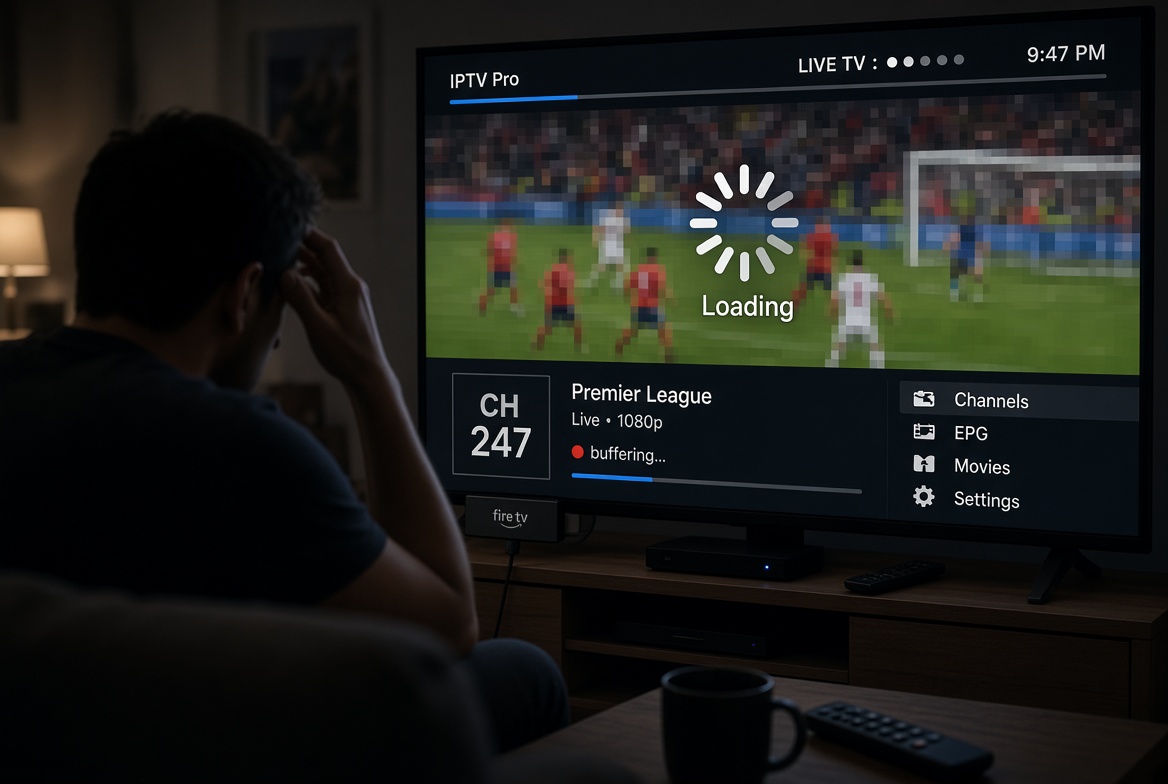
If your Firestick is running slow, don’t immediately blame your IPTV service. A sluggish remote, delayed menus, stuttering video, or slow-loading apps can come from the Firestick itself, its Wi-Fi connection, background processes, heat, or the IPTV app you’re using.
A useful way to diagnose the problem is to compare what happens across different apps. If BBC iPlayer, YouTube, Netflix, or other streaming services are also struggling on the Firestick while they work normally on your other devices, the problem may be with the Firestick or its connection rather than IPTV. Before changing your IPTV provider or buying another streaming device, work through these 7 essential checks.
1. Check Whether the Entire Firestick Is Running Slow
First, determine whether the problem is actually related to streaming.
Does the Firestick remote respond slowly? Are menus taking several seconds to open? Does the home screen feel sluggish even before you start watching anything?
If the answer is yes, you may be dealing with a wider Firestick performance problem rather than IPTV buffering.
Try navigating through the Fire TV menus and opening a few different apps. If everything feels slow, focus on the device before changing anything related to your IPTV subscription.
This distinction matters because slow menus and a slow remote response aren’t normally symptoms you should automatically attribute to an IPTV stream.
2. Check Your Firestick’s Wi-Fi Connection
Your Firestick may have a weaker connection than your phone, tablet, or smart TV even if all of them use the same home internet connection.
Open the Fire TV network settings and check which Wi-Fi network you’re connected to and whether the connection appears stable.
Things that can affect the Firestick include:
- Distance from the router
- Walls and furniture between the router and Firestick
- Wi-Fi congestion
- Interference from other wireless devices
- Using a crowded wireless band
- Router performance
If possible, move the router closer to the Firestick or improve the wireless signal.
For a permanent setup, a wired Ethernet connection can also be worth considering where your equipment supports it.
3. Test the Internet Speed Directly on the Firestick
Don’t assume that your internet package is the problem—or that having fast internet elsewhere means your Firestick is receiving the same performance.
Run a speed test on the Firestick itself.
You can compare the result with the speeds you’re getting on your phone, iPad, laptop, or smart TV in the same location.
A large difference can point toward a Wi-Fi or device-specific connection problem.
You can use Speedtest by Ookla to test your connection.
However, remember that internet speed is only one part of streaming performance. A connection can have good download speed and still experience instability, congestion, or other network problems.
4. Reduce Background Activity and Unnecessary Apps
If your Firestick is running slow, look at what is happening in the background.
Unused applications can consume storage and may also leave background processes or cached data behind.
Consider:
- Uninstalling apps you no longer use
- Clearing unnecessary app caches
- Force-stopping apps that aren’t needed
- Reducing unnecessary background activity
- Turning off unnecessary home-screen autoplay features
The Fire TV home screen can also load promotional video and audio content in the background. If your device is already struggling, reducing unnecessary autoplay activity is worth testing.
Don’t install five different “cleaner” applications just because someone recommends them online. Start with the simplest changes and test the Firestick after each one.
5. Check for Heat and Poor Device Placement
Heat is another possibility worth investigating when a Firestick gradually becomes less responsive.
If your device is squeezed behind a television, surrounded by other heat-producing electronics, or enclosed in a poorly ventilated space, it may have less opportunity to dissipate heat.
Look at where the Firestick is positioned.
Give it reasonable airflow and avoid trapping it inside a closed cabinet or directly against another hot device.
This isn’t proof that heat is causing your particular problem, but if the Firestick becomes noticeably slower after extended use, thermal performance is one factor worth checking.
6. Compare IPTV With Other Streaming Apps
This is probably the most important diagnostic test.
Open another streaming service on the same Firestick.
For example, try BBC iPlayer, YouTube, Netflix, or another service that normally plays reliably.
Then compare the results.
If everything is slow or stuttering
The problem is more likely to involve:
- Firestick performance
- Wi-Fi
- Internet connection
- Storage
- Background processes
- Heat
- The Firestick operating system
If other apps work perfectly but IPTV doesn’t
Now investigate:
- Your IPTV player
- Playlist size
- EPG loading
- Player settings
- The particular stream
- The IPTV service
This simple test can save you from blaming the wrong part of the setup.
7. Check Your IPTV App, Playlist and EPG
Once you’ve established that the Firestick itself is functioning normally, look at the IPTV application.
Your choice of player can make a difference to the overall experience. If you’re looking for alternatives, you can compare some of the best IPTV apps for Firestick before deciding whether the player is contributing to the problem.
If you’re already using an IPTV player and it feels slow while browsing a very large playlist, look at how many channels, categories and EPG entries you’re loading.
A playlist containing thousands of channels can make navigation and EPG management more cumbersome. Instead of keeping every country and category visible, consider hiding the content you never watch.
Our guide on how to remove countries and categories from an IPTV playlist explains how to organize a large playlist without unnecessarily deleting content.
You should also make sure you’re downloading IPTV applications from a trustworthy source. If you’re unsure where an IPTV application should come from, see our guide to the safest place to download IPTV apps.
And if you’re considering changing players, our TiviGlass review covers another option for Fire TV and Android TV users.
When Your Firestick Is Running Slow but IPTV Isn’t the Problem
This is where diagnosis becomes important.
Imagine this situation:
Your Firestick remote has become slow, menus take longer to respond, and BBC iPlayer starts stalling. At the same time, BBC iPlayer works perfectly on your iPad and smart TV.
That pattern points toward the Firestick or its connection being worth investigating before blaming IPTV.
On the other hand, suppose the Firestick menus are responsive and Netflix, YouTube and BBC iPlayer all work perfectly, but one IPTV service constantly buffers.
That’s a different situation.
In that case, investigate the IPTV application, playlist, stream quality, network route, or IPTV service itself.
The goal isn’t to prove that either the Firestick or IPTV is responsible. The goal is to isolate the problem.
Do You Need a New Firestick?
Not necessarily.
Before replacing your device, work through the seven checks above.
A Firestick that has accumulated unused applications, cached data, background activity, poor Wi-Fi conditions, or heat-related issues may improve considerably after basic maintenance.
If you’ve completed the troubleshooting steps and the device remains slow across multiple applications, however, the hardware or operating system may simply be reaching its practical limits.
At that point, comparing newer streaming hardware may make more sense than repeatedly changing IPTV services.
If the problem is specifically your IPTV setup, you can also review our IPTV channel list to see the available content before making a decision about your subscription.
For users who have already isolated the problem to their IPTV service, our IPTV plans and pricing are available here.
Quick Firestick Performance Checklist
Before you conclude that your IPTV is the problem, check:
- ✅ Is the entire Firestick slow?
- ✅ Does the remote respond normally?
- ✅ Is the Wi-Fi signal strong and stable?
- ✅ What speed does the Firestick actually receive?
- ✅ Have you removed unused applications?
- ✅ Have you cleared unnecessary caches?
- ✅ Is the device getting adequate airflow?
- ✅ Do other streaming apps work normally?
- ✅ Is your IPTV playlist unnecessarily large?
- ✅ Is your EPG loading thousands of unnecessary entries?
- ✅ Is your IPTV player updated?
Final Verdict
A Firestick running slow doesn’t automatically mean your IPTV service is the culprit.
Start with the device, then check the network, background activity and temperature. After that, compare IPTV against other streaming services. If everything else works normally, you can narrow your investigation toward the IPTV player, playlist, EPG or service.
That approach is much more useful than simply switching providers every time something buffers.
Frequently Asked Questions
Why is my Firestick running slow?
A Firestick can become slow because of limited storage, unnecessary applications, background activity, Wi-Fi problems, cached data, heat, or software-related issues. If multiple apps are slow, investigate the Firestick itself before blaming IPTV.
Why is IPTV slow on my Firestick but other apps work?
If Netflix, YouTube or other streaming services work normally while IPTV is slow, the problem may be related to the IPTV player, playlist, EPG, stream or IPTV service rather than the Firestick itself.
Can a large IPTV playlist slow down Firestick?
A very large playlist can make browsing and EPG management more cumbersome, particularly when thousands of channels and entries are being loaded. Hiding unused countries and categories can make the interface easier to manage.
Should I replace my Firestick if IPTV keeps buffering?
Not immediately. First test other streaming applications and check the Firestick’s network connection and general performance. If other apps work normally, investigate the IPTV setup before replacing the device.
Does Wi-Fi speed affect IPTV on Firestick?
Yes. Wi-Fi quality and stability can affect live streaming. The speed available directly to the Firestick may also differ from the speed measured on another device elsewhere in your home.