
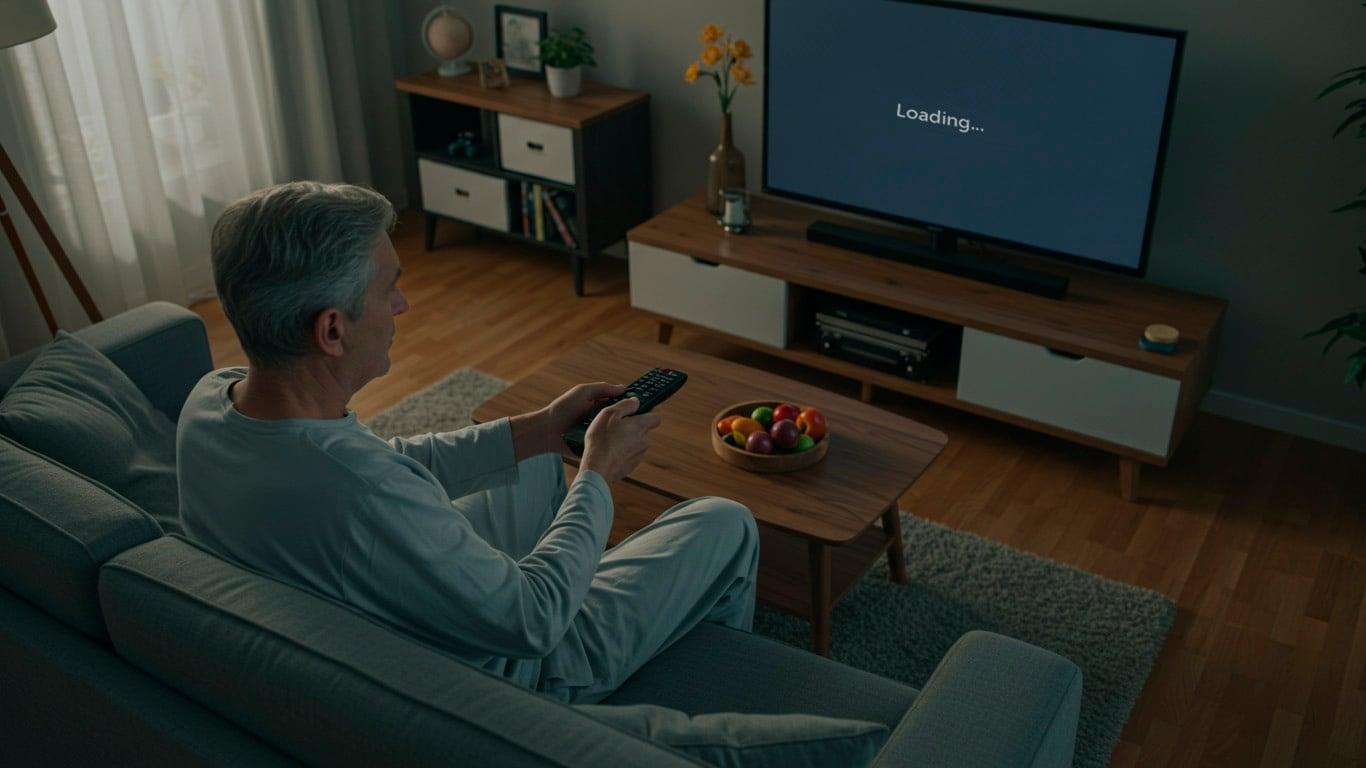
Have you ever selected an IPTV channel and been left staring at a frozen picture or black screen, only for the channel to start normally after you switch away and come back? IPTV channels loading slow can be frustrating, especially when your internet connection appears to be perfectly fine. I’ve experienced this myself, and one of the most useful clues is when changing to another channel and immediately switching back makes the original channel play normally.
The important thing is not to assume that your internet connection is automatically the problem. Slow channel loading can involve the IPTV app, streaming device, buffer settings, the individual stream, or the server delivering that particular channel. Here are 9 practical things to check before blaming your connection.
Why Are IPTV Channels Loading Slow?
There isn’t always one single cause. If IPTV channels loading slow happens only occasionally, the problem may be limited to a particular stream rather than your entire setup.
For example, you may notice that one channel takes several seconds to start while others open almost immediately. In other cases, a channel may appear frozen or remain black until you switch away and return.
That difference matters.
If every channel is slow, investigate your device, network and IPTV application. If only one or two channels behave this way, the individual stream becomes a much stronger suspect.
Is Slow Channel Loading the Same as IPTV Buffering?
Not necessarily.
Slow channel loading happens when you select a channel and it takes too long to begin playing. You might see a loading indicator, a frozen frame or a black screen before playback starts.
Buffering is slightly different. The channel has already started playing, but playback pauses because the player does not have enough usable video data to continue smoothly.
This distinction is important because the solution can be completely different.
If IPTV channels loading slow occurs when you first select a channel but the channel plays normally once it starts, repeatedly increasing your internet speed may not solve the underlying problem.
If the channel continuously stops during playback, however, you should investigate your connection and buffering conditions more closely.
1. Check Whether IPTV Channels Loading Slow Affects One Channel or Many
Start with the simplest test: switch through several channels.
Does the problem happen with almost everything, or is it limited to a few channels?
If five or ten channels open normally and one particular channel repeatedly takes a long time to start, don’t immediately start changing every setting on your device. That pattern points toward a problem with the individual stream or its source.
If IPTV channels loading slow happens across almost the entire playlist, the investigation should move toward your app, device, network and configuration.
This simple test can save you from changing settings that were never causing the problem.
IPTV Channels Loading Slow on One Channel
If the issue follows one particular channel, try switching away and returning to it.
This sounds almost too simple, but it can be useful. A channel that initially appears stuck may begin playing normally after another stream has been selected.
If the same channel repeatedly causes problems while surrounding channels work correctly, make a note of it. You now have a much better indication that the problem isn’t simply your overall internet connection.
2. Switch Away and Then Back
This is one of the quickest things to try.
If a channel appears frozen when you first select it, move to another channel and then return to the original one.
There are situations where the second connection attempt behaves differently from the first. You shouldn’t treat this as a permanent fix, but it is a useful diagnostic test.
If the channel immediately works after switching away and back, that tells you something important: the stream can play, but the initial connection did not complete normally.
If this keeps happening to the same channels, don’t keep repeating the process indefinitely. Move on to the next troubleshooting steps.
3. Restart Your IPTV App and Clear Its Cache
Sometimes the problem isn’t the stream itself. The IPTV application can also get into an awkward state.
Completely close the app and open it again. If your device provides a Force Stop option, you can use that before launching the application again.
Clearing the app cache can also be worth trying, particularly if the problem has appeared after the app has been running for a long time.
On Android TV, Google recommends restarting the device and provides options to clear an application’s data and cache when troubleshooting playback problems.
On Google TV, you can also clear an individual app’s cache from the device settings and restart the device.
Be careful with Clear Data or Clear Storage, though. Those options can remove local application settings and may require you to configure or log back into the app.
If you regularly experience IPTV channels loading slow, restarting the application is worth trying before making more complicated changes.
For Fire TV users, Amazon also provides troubleshooting options for clearing application data and cache.
If the problem continues, restarting the device and clearing the affected app’s cache can help rule out temporary app or system issues. Google’s troubleshooting guidance also recommends restarting and clearing app data/cache when playback problems occur.
On Fire TV, you can also clear an app’s stored data and cache through the device settings. This can be useful when an app behaves differently after extended use.
4. Check Your Buffer Settings
Your IPTV player’s buffer settings can affect the relationship between startup time and playback stability.
Increasing the buffer may help in situations where playback is struggling, but there is a trade-off: the player may wait longer before beginning playback.
That means a larger buffer isn’t automatically better.
If your main complaint is that channels take too long to start, don’t simply increase the buffer to the maximum setting and assume the problem is solved. Test one change at a time and see whether channel startup improves or becomes slower.
This is particularly important because IPTV channels loading slow and IPTV buffering are not exactly the same problem.
If increasing the buffer makes playback more stable but noticeably increases startup time, you have learned something useful about the way your player is handling the stream.
5. Test Your Internet Connection — But Don’t Stop There
Internet speed is worth checking, but don’t make it your only diagnosis.
A fast connection does not automatically guarantee that every IPTV stream will start quickly. Your connection to the internet is only one part of the chain between the channel source and your television.
You can use our guide to check the recommended internet speed for IPTV and make sure your connection isn’t creating a genuine bottleneck.
However, consider the pattern.
If YouTube, Netflix or other streaming services work normally and most IPTV channels start quickly while one or two repeatedly struggle, the evidence for a general internet-speed problem becomes weaker.
Likewise, a device connected by Ethernet with a very fast connection can still experience problems with individual streams. Your connection speed should therefore be tested, not automatically blamed.
6. Check Your Streaming Device
Your streaming device can also influence how quickly an IPTV application responds.
If the device is overloaded, low on storage or generally struggling with applications, you may notice slower app responses and playback problems.
This is especially worth checking on older Fire TV devices or devices that have accumulated a large number of applications.
If you’re using a Fire TV device and it is generally sluggish, see our guide on Fire Stick running slow for additional troubleshooting.
Google TV users can also check for system updates and restart the device when troubleshooting playback problems. Google specifically recommends restarting and checking for updates as part of its Google TV troubleshooting process.
The key is to look at the whole device rather than assuming every channel problem is caused by the IPTV service.
7. Check the IPTV App or Player
Different IPTV players can behave differently with the same playlist.
If your setup allows you to test another compatible player, this can be a useful diagnostic step. If the same channel starts quickly in one player but consistently struggles in another, the player becomes part of the investigation.
You can also review our guide to IPTV apps for Firestick if you’re using Fire TV and want to compare your available player options.
Don’t change several applications and settings at once, though. Test one variable at a time.
Otherwise, you won’t know which change actually affected the problem.
IPTV Channels Loading Slow Even With Fast Internet
This is where many troubleshooting attempts go wrong.
If IPTV channels loading slow happens even though your device has a strong connection and other channels work normally, look beyond raw bandwidth.
A stream can have problems that are specific to that channel. You may also encounter situations where a particular stream behaves differently at certain times or during transitions.
The practical question is therefore not simply:
“How fast is my internet?”
It is:
“Does the problem happen everywhere, or only with specific streams?”
That question can narrow the diagnosis much faster.
8. Consider the IPTV Stream or Server
If one channel consistently takes longer to start while others work normally, the stream itself deserves attention.
A provider may have multiple versions of the same channel, and those streams may not always behave identically. In some cases, switching to an alternative version can produce better results.
This is particularly useful for live sports, where the same event may be available through several channel feeds.
If you maintain more than one playlist, our guide to multiple IPTV playlists explains how separate playlists can be managed together.
You can also check your IPTV channel list to see whether an alternative version of the channel is available.
The important point is not to assume that every copy of a channel is technically identical. If one version repeatedly struggles and another starts normally, testing the alternative is a sensible troubleshooting step.
9. Try Another Channel When the Problem Keeps Returning
Sometimes the most practical solution is to stop fighting a problematic stream.
If a channel consistently freezes, takes too long to start or repeatedly requires you to switch away and return, try another version of the same channel if one is available.
This is especially useful when the rest of your playlist is working normally.
You should also pay attention to whether the problem occurs at particular moments. For example, a stream may appear reliable most of the time but fail during transitions or when programming changes.
If the problem is persistent and limited to one channel, spending an hour changing device and network settings may accomplish nothing.
How to Tell Where the Problem Really Is
Use this quick diagnostic approach:
One channel is slow:
Suspect the individual stream first.
Several channels from the same category are slow:
Look at the streams, playlist or provider-side source.
Every channel is slow:
Investigate your IPTV app, device, network and configuration.
Channels load normally but repeatedly pause:
Investigate buffering, connection stability and playback conditions.
Switching away and returning fixes the channel:
The initial stream connection may be failing or behaving inconsistently.
The IPTV app itself feels sluggish:
Restart the app, check the device and consider clearing its cache.
This approach is much more useful than immediately changing your internet package.
What About a Black Screen or Audio With No Picture?
A slow-loading channel can sometimes look like a completely different problem.
You may see a black screen, hear audio without video, or have a channel appear frozen until you change away from it.
If your particular problem involves a black screen while audio continues to play, take a look at our guide to IPTV black screen and audio issues.
That issue deserves separate troubleshooting because a black screen does not necessarily mean the channel is simply loading slowly.
Final Verdict: Don’t Blame Your Internet Too Quickly
When IPTV channels loading slow, the fastest way to find the cause is to look for a pattern.
Does it happen to every channel or only a few? Does switching away and returning fix it? Does clearing the app cache help? Does changing the buffer make a difference? Does the same channel behave differently in another player or through another stream?
Those questions are more useful than simply asking whether your internet connection is fast enough.
A good IPTV setup should not require you to constantly switch channels just to make them start. But occasional problems with individual streams can happen, and a fast connection doesn’t eliminate every possible cause.
Start with the simplest tests: switch away and back, restart the app, check the buffer, test your connection and compare another channel. If the problem consistently follows one particular stream, you’ve probably found the most important clue.
The goal isn’t to change every setting until something magically works. Diagnose the pattern first, then change the setting that actually relates to the problem.