
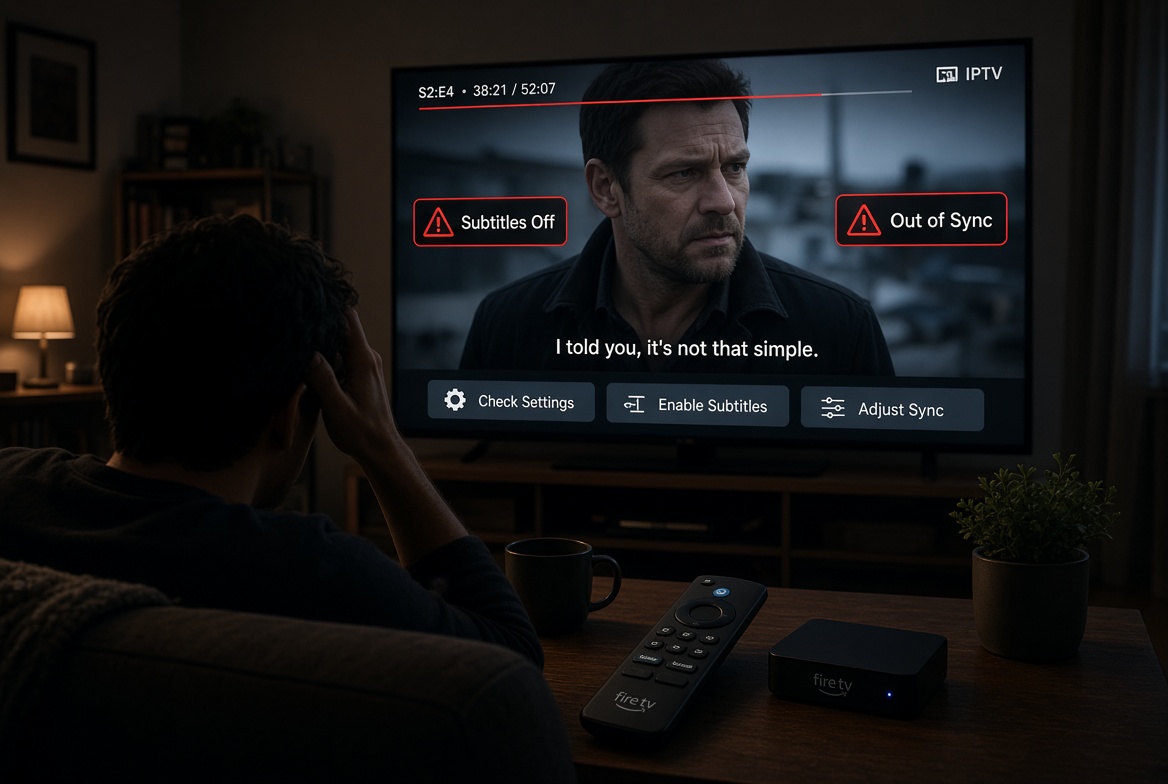
If IPTV subtitles not showing when you watch a movie, series, or live stream, the problem is not necessarily your IPTV service. Subtitles can depend on the video source, the player you are using, the available subtitle track, your language settings, or the way the app loads external subtitle files.
That is why subtitles can sometimes work perfectly on one device or player but disappear on another.
The good news is that most subtitle problems can be narrowed down with a few simple checks. This guide explains what to look for and what to try when subtitles are missing, failing to load, appearing in the wrong language, or becoming out of sync.
Why Are IPTV Subtitles Not Showing?
Before changing a lot of settings, it helps to identify exactly what is missing.
There are several possibilities:
- The video does not contain a subtitle track.
- The subtitle track exists but is disabled.
- The player cannot load the available subtitle source.
- The wrong subtitle language is selected.
- An external subtitle service is not responding.
- The subtitle file does not match the video.
- An app setting or cached configuration is causing a problem.
- Another component or add-on is interfering with subtitle loading.
A simple test is to open another movie, series episode, or programme and check the subtitle menu again.
If subtitles appear on one title but not another, the problem may be with the particular video source rather than your TV, phone, or IPTV application.
Subtitles can also come from different places. Some are included with the video itself, while others are separate text tracks that the player loads alongside the video. WebVTT, for example, is a standard format used for external, time-aligned subtitle and caption tracks.
How to Fix IPTV Subtitles Not Showing
1. Check the Subtitle Option Inside Your IPTV Player
Start with the IPTV player rather than changing your device settings.
While the video is playing, open the player controls and look for options such as:
- Subtitles
- CC
- Captions
- Subtitle Track
- Audio & Subtitles
If the option is available, make sure subtitles are enabled and select the language you want.
If there is no subtitle option at all, test another title.
If the subtitle menu appears on another programme, the first stream may simply not contain a usable subtitle track.
This is one reason your choice of player matters. Different IPTV apps can handle subtitle tracks and external subtitle sources differently.
If you want to compare compatible players, you can browse our IPTV apps and downloads before changing anything else.
2. Check Your Preferred Subtitle Language
A subtitle track may exist without being available in your preferred language.
Open the subtitle or language settings in your player and check which language is selected.
For example, if English is selected but the particular content only provides Spanish or French subtitles, nothing may appear until you choose one of the available tracks.
Google TV also provides system-level caption controls under Settings > Accessibility > Captions, although Google notes that caption preferences may not apply to every application.
Android TV similarly provides closed-caption controls through its Accessibility settings, although the exact options can vary depending on the Android version and TV model.
This distinction matters because changing your television’s global caption setting does not necessarily force every IPTV application to display subtitles. The IPTV app or player may control its own subtitle behavior.
3. Try Another Subtitle Track
If several subtitle tracks are available, switch between them.
One track may be incomplete, incorrectly timed, unavailable, or incompatible with the player while another works normally.
If one language works and another does not, the problem is more likely to be subtitle availability or the specific subtitle source than your television.
Also check whether the subtitles are actually being displayed but are difficult to see because of their size, position, or styling.
4. Clear the App Cache and Restart the Player
If IPTV subtitles not showing started after the app had previously been working normally, try a basic reset.
- Close the IPTV app completely.
- Clear its cache if your device provides that option.
- Restart the device.
- Open the IPTV app again.
- Play the same content and check the subtitle menu.
Cached application data can sometimes leave an app behaving differently after a configuration change or update.
Don’t immediately reset every setting you can find. Start with the cache and restart, then test again.
5. Check the Player’s Subtitle-Loading Settings
Some IPTV and media players provide separate settings for how subtitles are searched for or loaded.
Depending on the application, you may find settings relating to:
- External subtitles
- Subtitle services
- Automatic subtitle selection
- Subtitle language
- Subtitle loading speed
- Subtitle appearance
- Subtitle delay
If your player has recently changed how it loads subtitles, check these settings before assuming the stream is defective.
If the problem started immediately after changing one of these options, return that setting to its previous configuration and test again.
Make one change at a time.
That is important because changing five settings simultaneously makes it much harder to determine which one actually fixed the problem.
6. Try a Different IPTV Player
One of the most useful troubleshooting steps is to test the same content with another compatible player.
If subtitles work in one player but not another, your IPTV connection may not be the problem.
The difference could be the way each player handles subtitle tracks or external subtitle sources.
This is also why it is useful to keep your IPTV application and your underlying playback configuration separate when troubleshooting.
If you use a Firestick, for example, you can compare different IPTV apps for Firestick and see whether the subtitle behavior changes.
If the same stream displays subtitles correctly in another player, you have already narrowed the problem down considerably.
7. Test Another Device
If possible, test the same programme on another supported device.
For example, if subtitles fail on your Android TV but work correctly on your phone or computer, the problem is probably related to the original app, device settings, or player configuration.
If the problem follows the same programme across multiple devices, check whether that particular stream actually provides subtitles.
Testing another device is useful because it separates a content problem from a device or application problem.
For PC users, you can also test the same service with a desktop-compatible player. Our guide on how to watch IPTV on a PC covers the basic setup.
8. Check Whether Another Setting or Add-On Is Interfering
In some media applications, subtitle functionality can depend on more than one component.
A recently added extension, subtitle source, metadata component, or player setting can sometimes change how subtitle options are presented or loaded.
If subtitles stopped working immediately after installing or changing something, temporarily disable the new component and test again.
If IPTV subtitles not showing only occurs after a particular configuration change, that change is an important clue.
It is also possible for an application to show built-in subtitles while failing to load external subtitle sources. If that happens, the problem may be with the external subtitle retrieval process rather than the video itself.
9. Check Whether the Stream Actually Has Subtitles
Not every IPTV stream has subtitles.
This is easy to overlook because subtitles may be available on some channels, movies, or programmes but not others.
If the subtitle menu is completely empty for one piece of content, try another title before assuming your IPTV player is broken.
The same principle applies to live television.
One channel may provide subtitle data while another does not. A player cannot display a subtitle track that is not available to it.
If subtitles work on several other channels or programmes, that is strong evidence that your basic setup is functioning.
10. What to Do When IPTV Subtitles Are Out of Sync
Missing subtitles and out-of-sync subtitles are two different problems.
If the subtitles appear but the text comes too early or too late, look for a subtitle delay, subtitle synchronization, or subtitle offset control in your player.
Some players allow you to move subtitles forward or backward while the video is playing.
If there is no synchronization control, try another subtitle track or player.
The reason is simple: a subtitle file can contain correctly timed text but still be a poor match for the particular video version.
For example, a subtitle track created for one release of a movie may not line up correctly with another release that has different timing.
Why Are IPTV Subtitles Not Showing on One Device?
If IPTV subtitles not showing happens on only one television, Fire TV device, Android TV box, phone, or computer, focus your troubleshooting on that particular device.
Check the following:
- Is the IPTV app updated?
- Is the player’s subtitle setting enabled?
- Is the correct subtitle language selected?
- Are device caption settings enabled where appropriate?
- Have you cleared the app cache?
- Does another compatible player produce the same result?
- Does the same content show subtitles on another device?
On Android TV, Google provides system-level caption controls under Settings > Device Preferences > Accessibility > Captions. Google also notes that available features can differ according to the Android version and TV model.
If the subtitles work on your phone but not your TV, don’t immediately change your IPTV subscription. First isolate the difference between the two devices.
If you are still setting up your IPTV application, our IPTV setup guide provides the basic configuration steps for supported devices.
What If the Picture Is Black but Audio Works?
If the video itself is not displaying correctly while audio continues to play, you may be dealing with a separate playback issue rather than a subtitle problem.
In that situation, changing subtitle settings is unlikely to solve the problem.
Use our guide on fixing an IPTV black screen when audio is working to troubleshoot the video playback problem separately.
This distinction is useful because subtitles are only one layer of the playback process. You don’t want to spend 20 minutes changing subtitle settings when the actual problem is video decoding or playback.
What If Subtitles Work in One App but Not Another?
This is actually a useful diagnostic clue.
If the same programme plays on the same device but subtitles appear in one player and not another, you do not necessarily need to change your IPTV service or internet connection.
Instead, compare the players’ subtitle controls and loading behavior.
One player may support the available subtitle format or source more effectively than another.
For example, WebVTT is designed for external, time-aligned text tracks, while SRT and TTML are also commonly used subtitle and caption formats. Player support and implementation can therefore affect how those tracks are handled.
The goal is to identify whether the problem is with:
The content → the subtitle source → the player → or the device.
Once you know which layer is responsible, the solution becomes much easier to find.
When IPTV Subtitles Not Showing Requires a Different Fix
If you have tried several titles, multiple players, and more than one device and subtitles remain unavailable, the problem may be outside your local setup.
At that point, check:
- Whether the particular content is supposed to include subtitles.
- Whether the subtitle language you want is available.
- Whether the stream or content source has changed.
- Whether the same problem occurs across different titles.
- Whether the problem affects live channels as well as on-demand content.
- Whether your IPTV provider or application has a known issue affecting subtitle delivery.
Avoid repeatedly changing unrelated settings when the evidence points toward the content source itself.
Your goal is not to change everything until something works. Your goal is to identify where the failure occurs.
Quick IPTV Subtitle Troubleshooting Checklist
If IPTV subtitles not showing is giving you trouble, work through this checklist in order:
✓ Open the subtitle menu
Make sure subtitles are actually enabled.
✓ Try another language
The preferred language may not be available for that content.
✓ Try another movie or programme
This tells you whether the problem is content-specific.
✓ Try another subtitle track
One track may be unavailable or incorrectly synchronized.
✓ Restart the IPTV app
Close it completely before reopening it.
✓ Clear the app cache
This can resolve configuration or loading problems.
✓ Check subtitle settings
Look for external subtitles, subtitle services, automatic selection, and synchronization options.
✓ Try another player
This helps determine whether the problem is application-specific.
✓ Try another device
This helps separate device problems from content problems.
✓ Check the stream itself
Not every channel or programme provides subtitles.
Final Thoughts
IPTV subtitles not showing does not automatically mean your IPTV service is broken.
The cause can be as simple as subtitles being unavailable for a particular stream, a disabled subtitle option, an unsupported language, a player configuration problem, or a subtitle track that does not match the video.
Start with the simplest checks: open the subtitle menu, try another language or title, restart the player, clear the cache, and test another player or device.
If subtitles work somewhere else, you have narrowed the problem down to the original app or device.
If the issue affects every title across multiple devices, investigate the content or service side rather than continuing to change settings on your TV.
The most effective troubleshooting approach is always the same: change one thing, test it, and use the result to narrow down the cause.