
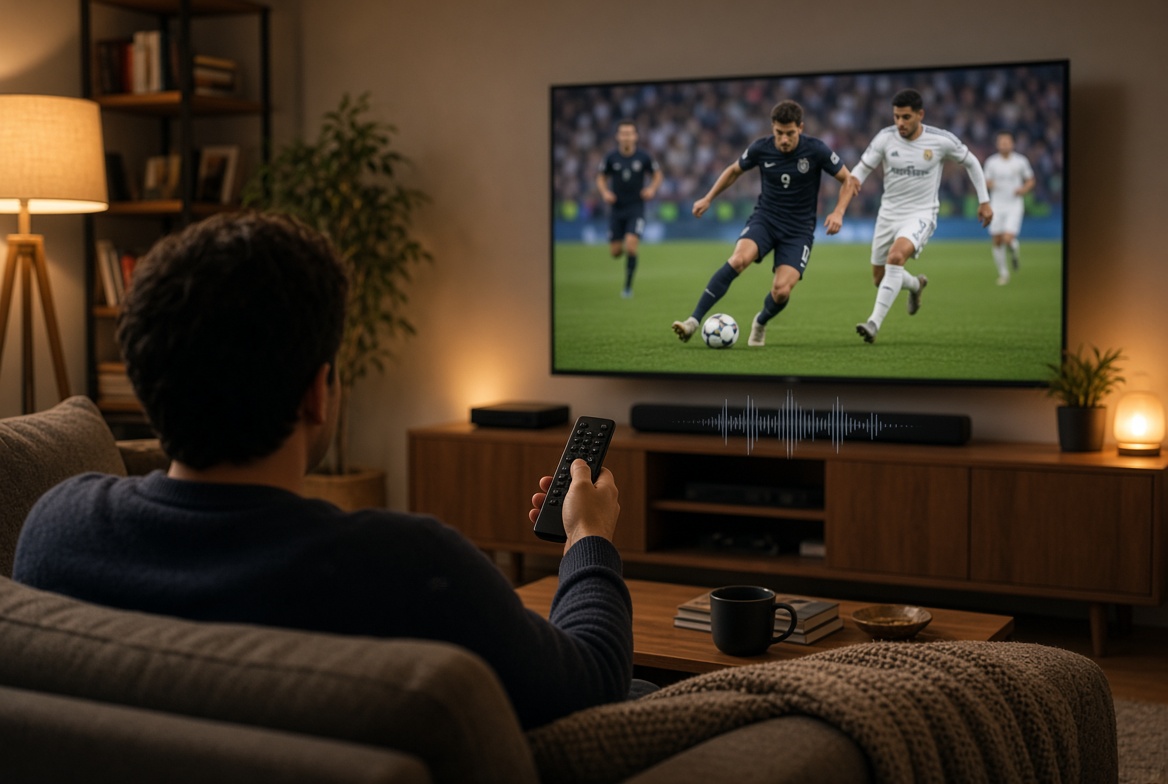
If you’ve ever strained to hear the commentary over crowd noise during a big match, you’re not alone — it’s one of the most common complaints among sports fans streaming at home. The good news: adjusting a few IPTV audio settings while live streaming sports can make a real difference, and most of these fixes take less than a minute, regardless of which device you’re using.
1. Turn On Dialogue Enhancement (Fire TV)
Fire TV devices include a built-in feature called Dialogue Boost, designed specifically to balance commentary and background noise. It works using on-device audio processing that reduces background sound while boosting dialogue in real time — without raising your overall volume.
To enable it: go to Settings > Display & Audio > Audio, and toggle Dialogue Boost on. On newer models like the Fire TV Stick 4K Max and 4K Plus, you can also adjust the intensity rather than just switching it on or off. This is one of the most effective single changes you can make to your IPTV audio settings while live streaming sports, since commentary clarity is exactly the problem it was built to solve.
Some older Fire TV devices use a slightly different path: Settings > Sound Settings, where a similar dialogue-enhancement toggle may be labeled differently depending on your Fire OS version.
2. Enable Volume Leveler for Consistent Commentary Levels
A related but separate setting worth checking is Volume Leveler, found under Settings > Display & Audio > Advanced Audio on most Fire TV devices. This smooths out sudden volume jumps — like a crowd eruption after a goal — so commentary doesn’t get buried the moment the action picks up. Pairing Dialogue Boost with Volume Leveler tends to produce the clearest, most consistent result for live sports specifically, where audio levels swing constantly.
3. Check Clear Voice or Similar Modes on Android TV and Smart TVs
If you’re watching on an Android TV, Google TV device, or a smart TV with its own built-in speakers, look for a sound mode often labeled Clear Voice, Speech Enhancement, or something similar, usually found under the TV’s own sound settings menu (separate from your streaming app). These work on a similar principle to Dialogue Boost — prioritizing vocal frequencies over ambient noise — and the exact naming varies by manufacturer, so it’s worth checking your TV’s sound menu even if you don’t see the exact term “dialogue.”
4. Adjust Audio Settings on Apple TV
Apple TV includes its own dialogue-clarity option as part of its accessibility and audio settings. Go to Settings > Video and Audio, and look for options related to reducing background sound or boosting dialogue — Apple has steadily expanded these audio accessibility features across tvOS updates, and they apply across apps rather than needing to be configured per-app.
5. Match Your Audio Output Format Correctly
This one’s less about dialogue specifically and more about avoiding a common cause of muddy or distorted sound entirely: making sure your audio output setting matches what your TV or sound system actually supports. If your device is set to output a format your soundbar or AV receiver doesn’t fully handle, you can end up with compressed, unclear, or oddly balanced sound regardless of any dialogue setting. On most devices, this is found under Audio Output in the display/sound settings — if you’re unsure, setting it to “Auto” or “Dolby Digital” (rather than a passthrough format your system doesn’t support) is usually the safer default. Getting this right is a foundational part of good IPTV audio settings while live streaming sports, since no amount of dialogue boosting fixes a mismatched output format.
Why This Matters More for Live Sports Specifically
On-demand content like movies and shows is mixed and mastered in a studio with consistent levels throughout. Live sports audio is far less predictable — crowd noise, stadium acoustics, and commentator mic levels all vary constantly during a broadcast. That’s exactly why IPTV audio settings while live streaming sports matter more here than for other content: the tools built into modern streaming devices exist specifically to compensate for that unpredictability in real time.
Getting the Most Out of Your Device
If you’re setting up a new device and want to get everything configured properly from the start, our guide on how to set up IPTV on a smart TV covers installation and initial setup across Samsung, LG, Apple TV, and Android TV. And if you’re deciding which device to invest in for regular sports viewing, our buyer’s guide to the best IPTV streaming devices breaks down which models handle live playback most reliably.
Once your device and audio are dialed in, check our pricing plans to confirm you’ve got the right package for your household, and browse the full channel list to see every sport and league included with your subscription.
Final Thoughts
Getting clearer commentary while watching sports usually comes down to checking two or three settings rather than buying new equipment — Dialogue Boost and Volume Leveler on Fire TV, Clear Voice-style modes on Android TV and smart TVs, Apple TV’s built-in audio accessibility options, and making sure your output format actually matches your sound system. Taking five minutes to check your IPTV audio settings while live streaming sports before the next big game is a small fix that makes a genuinely noticeable difference.