
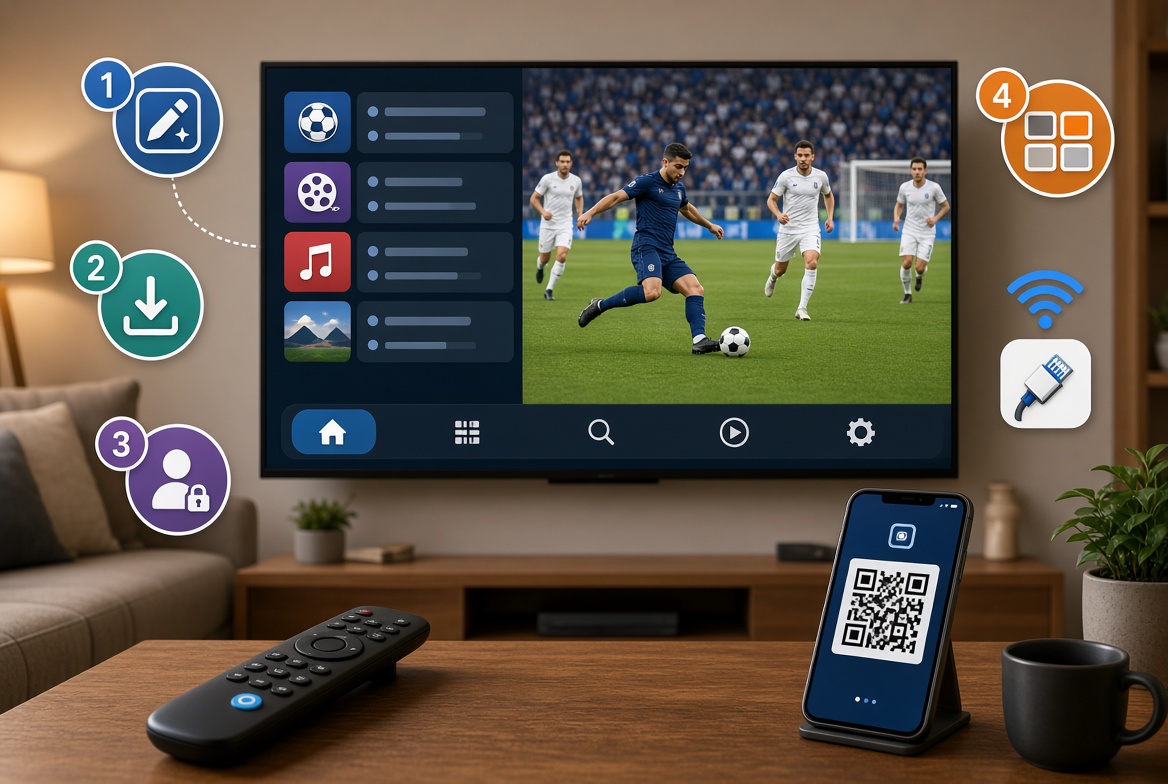
Learning how to set up IPTV on a smart TV isn’t complicated, but the exact steps vary depending on whether you own a Samsung, LG, Apple TV, or Android-based TV. This guide walks through the actual installation and setup process for each — not just which app to pick, but how to get it installed, logged in, and running smoothly the first time.
If you haven’t chosen an app yet, our guide to the best IPTV apps for smart TVs is worth checking first, since the steps below assume you’ve already picked one. It’s also worth reading our guide on the safest places to download IPTV apps before installing anything outside your TV’s official app store.
What You’ll Need Before You Set Up IPTV on a Smart TV
- An active IPTV subscription (your Xtream Codes login or M3U playlist URL)
- A smart TV connected to the internet (Wi-Fi or Ethernet)
- Your chosen IPTV app already selected
How to Set Up IPTV on a Samsung Smart TV
Samsung TVs run on Tizen OS, and installing apps works through the built-in Samsung Smart Hub:
- Press the Home button on your remote to open the Smart Hub.
- Select Apps from the menu.
- Use the search function to find your chosen IPTV app.
- Select the app, then choose Install.
- Once installed, select Open to launch it.
According to Samsung’s official support documentation, apps installed this way will also auto-update as long as your TV stays connected to the internet — worth enabling so you’re not stuck on an outdated version.
One thing worth knowing upfront when you set up IPTV on a smart TV running Tizen: Samsung’s official app store has a more limited selection than Android-based platforms, since every app needs separate publisher approval. If your preferred IPTV app isn’t available in the Samsung store directly, casting from a phone is a reliable workaround.
How to Set Up IPTV on an LG Smart TV
LG TVs run on webOS, with a similar but distinct process:
- Press the Home button on your LG remote.
- Navigate to the LG Content Store (sometimes labeled just “Apps”).
- Search for your IPTV app by name.
- Select Install.
- Once complete, open the app directly from your home screen.
Like Samsung, LG’s webOS app store depends on individual publisher approval, so availability can vary by app and by region.
Setting Up IPTV on an Apple TV
Apple TV uses tvOS, and since third-party IPTV apps are now supported, the process is straightforward through the App Store:
- From the Apple TV home screen, open the App Store.
- Search for your IPTV app by name.
- Select Get (or the price, if it’s a paid app) to install.
- Once installed, open the app directly from your home screen.
Apple’s App Store review process tends to be stricter than Android’s, so app selection on Apple TV is somewhat narrower, though it’s expanded significantly in recent years. If your preferred app isn’t available, AirPlay from an iPhone or iPad running the app is a dependable fallback.
Setting Up IPTV on an Android TV or Google TV
This is generally the smoothest way to set up IPTV on a smart TV, since Android TV and Google TV run on the same underlying app ecosystem as Android phones:
- From the home screen, open the Google Play Store (or the dedicated apps section on Google TV).
- Search for your IPTV app.
- Select Install.
- Once installed, open the app from your apps list.
Android and Apple-based platforms generally support a wider range of IPTV apps than Samsung or LG’s more closed ecosystems, though Apple’s stricter review process means its selection still trails Android TV and Google TV somewhat.
Entering Your IPTV Login Details
Once your app is installed on any platform, the next step is the same everywhere: entering your subscription details. This is usually the part that trips people up the most, since different apps label the fields slightly differently (Xtream Codes API vs. M3U URL, for example). Our guide on where to enter Xtream Codes and M3U URLs walks through this in detail, so it’s worth having open the first time you set things up.
Common Issues When You Set Up IPTV on a Smart TV
A few problems come up repeatedly during first-time setup, regardless of TV brand:
- App not found in the store: Try searching by the exact app name, or check regional availability. If it’s genuinely unavailable, casting from a phone is the easiest workaround.
- Login details rejected: Double-check for extra spaces or incorrect capitalization when copying your Xtream Codes or M3U URL — this is the most common cause of a failed first login.
- Channels loading slowly or buffering immediately: This is usually a connection issue rather than a setup mistake. A wired Ethernet connection tends to be noticeably more stable than Wi-Fi for live streaming.
- App crashes on launch: Restarting the TV after installation resolves this more often than expected, especially on older models with limited memory.
A Note on Smart TV Limitations
It’s worth being upfront: smart TVs — particularly older or budget models — can have more limited processing power and storage than a dedicated streaming device. If your smart TV consistently struggles even after a proper setup, pairing your subscription with a dedicated streaming device is often the simpler long-term fix, especially for larger channel lists.
Final Thoughts
Whether you’re on Samsung, LG, Apple TV, or Android TV, the process to set up IPTV on a smart TV comes down to the same basic sequence: install the app through your TV’s native store, enter your subscription details carefully, and troubleshoot connection issues separately from setup issues. Once you’re up and running, check our pricing plans to confirm you’ve got the right package, and browse our full channel list to see everything included.