
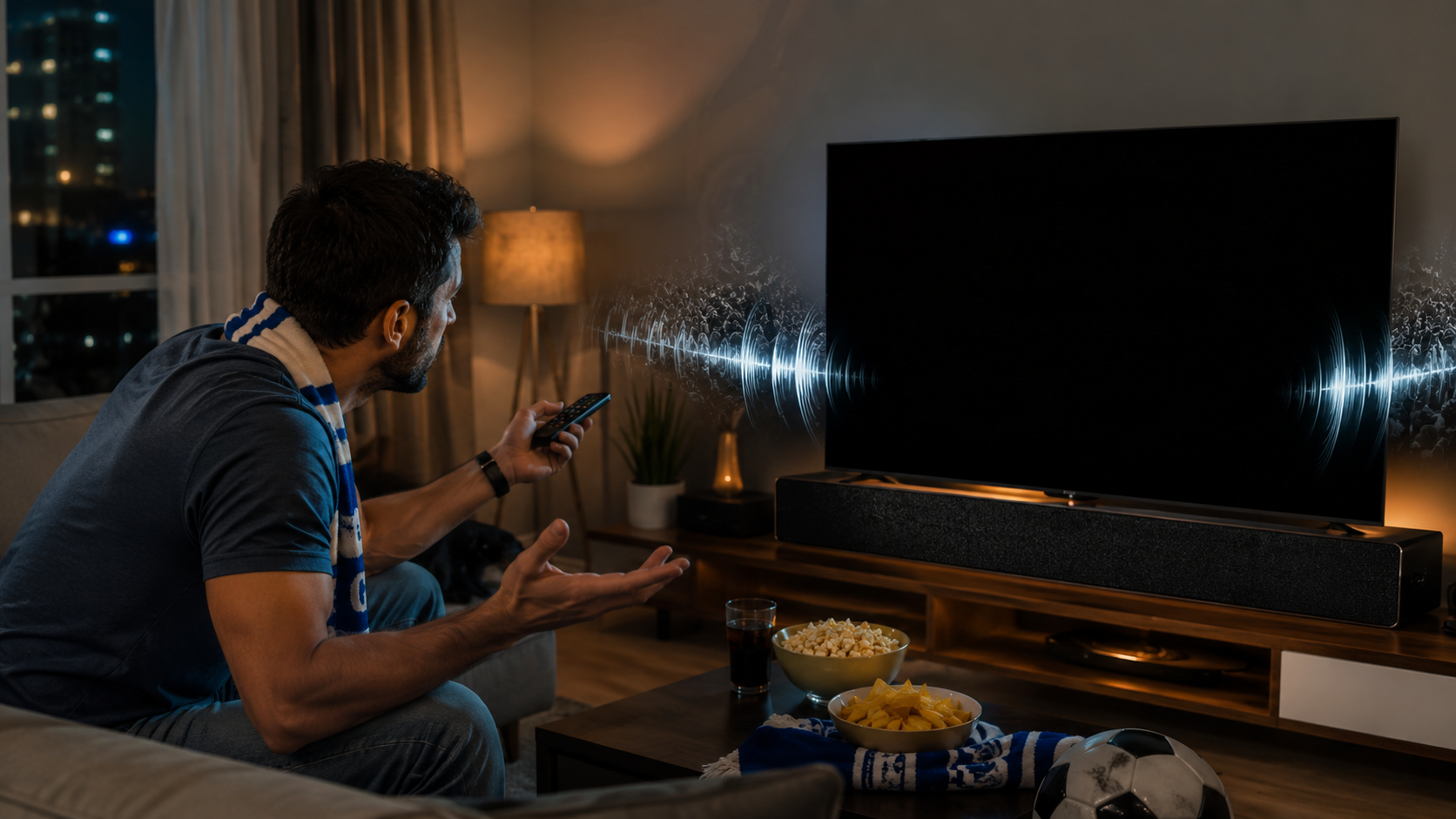
IPTV black screen with audio still working almost always means a codec mismatch between the stream and your player app — not a connection failure. Audio and video are decoded separately by your device, so when the sound plays normally but the picture stays black, your device has successfully decoded the audio track while failing to decode the video track. That distinction matters because it points you toward the right fix immediately instead of wasting time restarting your router or checking your internet speed for no reason.
This guide breaks down the 5 real causes behind this specific combination of symptoms and the exact fix for each one.
Why Black Screen With Working Audio Is a Different Problem Than No Signal At All
If your IPTV connection had genuinely failed, you would lose both audio and video together — that is a connection problem. Losing only the video while audio continues playing normally is a decoding problem specific to the video pipeline on your device. Understanding this distinction immediately rules out half of the usual troubleshooting advice you will find elsewhere, most of which assumes a connection issue and sends you in the wrong direction entirely.
Cause 1 — Codec Incompatibility (the Most Common Cause)
Many IPTV streams, especially HD and 4K sports channels, use H.265/HEVC video encoding because it is more bandwidth-efficient than older H.264 encoding. The problem is that older Firestick generations, budget Android boxes, and some Smart TV apps either do not support HEVC decoding at all or only support it partially. The audio codec — almost always AAC or MP3 — is universally supported across every device, so it plays fine regardless. The video codec silently fails, and you are left staring at a black screen with the commentary playing normally.
The fix: Switch to a standard HD version of the same channel if your provider offers one, rather than the 4K or enhanced HD version. If the standard HD stream displays picture correctly, this confirms a codec issue. On Firestick specifically, devices from the 3rd generation onward (2020+) support HEVC properly — if you are on an older device, this is a hardware limitation rather than something fixable through settings.
Cause 2 — Hardware Decoder Overload
Budget streaming devices often fall back to software decoding when the dedicated hardware video decoder cannot handle a stream’s resolution or bitrate. Software decoding is far less reliable under load and can drop the video output entirely while the comparatively lightweight audio stream continues without any issue, since audio requires a fraction of the processing power video does.
The fix: Close every other app running in the background before opening your IPTV player. On Firestick, press and hold the Home button to see active apps and force close anything you are not using. If the black screen disappears with background apps closed, the device was simply overloaded.
Cause 3 — An App Rendering Bug After an Update
This happens more often than most troubleshooting guides admit. IPTV player apps like TiviMate, IPTV Smarters Pro, and GSE Smart IPTV are updated regularly, and occasionally an update introduces a bug specifically in the video rendering pipeline while leaving the separate audio pipeline completely unaffected, because the two are handled by different sections of the app’s code.
The fix: Check whether your app has a pending update in the Amazon App Store or Google Play Store. If you are already on the latest version and the issue started right after updating, try rolling back to the previous version if your app store allows it, or switch to an alternative player app temporarily — our guide to the best IPTV apps for Firestick covers the most reliable options if you need to switch.
Cause 4 — HDMI Handshake Failure (HDCP Issue)
If your Firestick or Android box connects to your TV through a soundbar, an HDMI switch, or an older AV receiver rather than directly into the TV’s HDMI port, the HDCP copyright protection handshake between devices can fail specifically for video while audio continues passing through a separate signal path. This is especially common with older TVs, third-party HDMI splitters, and budget soundbars that do not fully support the latest HDCP standard.
The fix: Connect your streaming device directly into an HDMI port on the TV itself, bypassing any soundbar or switch in between, even temporarily, to confirm whether this is the cause. If picture returns immediately, the issue is with your HDMI chain, not your IPTV subscription.
Cause 5 — Corrupted App Cache
A corrupted video buffer cache can cause video rendering to fail while the much smaller audio buffer remains intact and continues playing normally. This is less common than the first two causes but is also the easiest to rule out.
The fix: On Firestick go to Settings → Applications → Manage Installed Applications → select your IPTV player app → Clear Cache. Do not select “Clear Data,” which would remove your saved login credentials. Restart the app afterward.
What This Tells You About Stream Quality and Buffering Generally
A black screen with working audio is a decoding problem, but it often shows up alongside the same underlying conditions that cause general buffering during high-demand viewing periods like live sports. If you are also experiencing interruptions, freezing, or stuttering on top of the black screen issue, our complete breakdown of why IPTV buffers during live sports events covers the connection and bandwidth-related causes that often compound decoding issues during peak viewing moments.
It is also worth understanding what is and is not included in your subscription when these issues arise — our guide to how IPTV subscriptions actually work explains the difference between provider-side issues and device-side issues like the ones covered in this article, which is useful context when deciding whether a problem is something you can fix yourself or something to raise with your provider’s support team.
When the Problem Is Genuinely the Provider, Not Your Device
If you have worked through all 5 causes above and the black screen persists across multiple channels, multiple apps, and after directly connecting to your TV’s HDMI port, the cause may sit on the provider’s side — specifically a server-side encoding issue affecting the video stream itself rather than your equipment. This is rare with established, well-maintained providers but worth ruling out.
Before subscribing to any IPTV service, checking the quality and consistency of the provider’s streams matters as much as the channel count itself. Browse the RushStreams channel list to see the full range of supported channels and quality tiers, check current pricing plans, and follow the setup guide for device-specific installation that minimises exactly the kind of compatibility issues covered in this article.
Frequently Asked Questions
Why does my IPTV have sound but no picture? This is almost always a video codec decoding failure on your device while the audio decodes normally, since audio and video are processed through separate pipelines. The most common cause is HEVC/H.265 codec incompatibility on older devices.
Is a black screen with working audio a connection problem? No. A genuine connection failure causes both audio and video to stop together. When only the video fails while audio continues, the cause is on the decoding side of your device or app, not your internet connection.
Does clearing the cache fix a black screen on IPTV? It can, specifically when the cause is a corrupted video buffer. Clear the app’s cache rather than its data to avoid losing your saved login credentials, then restart the app.
Why does this happen specifically during 4K or HD+ channels? Higher resolution channels are more likely to use HEVC/H.265 encoding, which not all devices fully support. Switching to a standard HD version of the same channel often resolves the issue immediately and confirms a codec-related cause.
Can a soundbar or HDMI switch cause a black screen on IPTV? Yes. HDCP handshake failures between your streaming device, an intermediary device like a soundbar or switch, and your TV can block video specifically while allowing audio through a separate path. Connecting directly to the TV’s HDMI port rules this out.
Should I contact my IPTV provider about this issue? Only after ruling out the 5 device-side causes covered above. If the black screen persists across multiple channels, apps, and a direct HDMI connection, it is reasonable to raise the issue with your provider as a possible server-side encoding problem.
All troubleshooting steps reflect common IPTV player apps and devices as of June 2026. Exact menu navigation may vary slightly by device firmware version.