
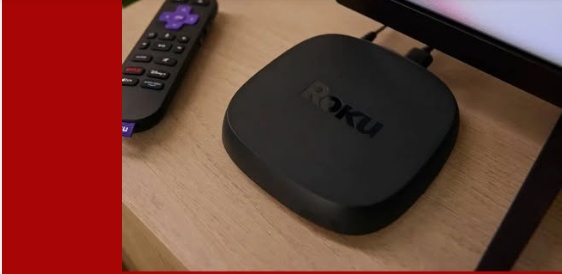
How to Watch IPTV on Roku (Plus 5 Settings You’re Probably Missing)
If you’re trying to get IPTV on Roku running smoothly, you’ve probably noticed it’s not quite as straightforward as it is on other streaming devices. That’s not you doing something wrong — Roku is simply built differently, and a few settings changes plus the right setup method make a bigger difference here than on almost any other platform.
This guide covers both sides of it: the Roku settings worth checking before you do anything else, and the actual methods for getting IPTV working once your device is dialed in.
Why Roku Is a Bit Different for IPTV
Before getting into settings, it helps to understand what you’re working with. Roku runs a closed operating system — it only allows apps that have been reviewed and approved into its official Channel Store. Unlike Fire TV or Android TV boxes, there’s no sideloading option, so you can’t just drop in any IPTV player app you find online.
That means IPTV on Roku works, but through a narrower set of methods than you might expect. Knowing this upfront saves a lot of troubleshooting time later.
5 Roku Settings to Check First
These are the settings most people skip, and they can make or break your streaming experience before you even get to IPTV setup.
1. Update your Roku OS Go to Settings > System > System Update and check for the latest version. An outdated OS can cause playback issues with newer apps and features.
2. Adjust your display resolution Settings > Display Type lets you match your Roku’s output to your TV’s native resolution. A mismatch here is a common, overlooked cause of lag or blurry picture.
3. Set your network to prioritize streaming Settings > Network > Check Connection shows your current speed. If you’re on Wi-Fi and getting inconsistent results, switching to a wired Ethernet connection (via a Roku Ultra or Ethernet adapter) makes IPTV streams noticeably steadier.
4. Turn off automatic screen dimming/screensavers Settings > System > Power can end up interrupting long viewing sessions like live sports. Adjusting this keeps your stream from being interrupted mid-match.
5. Review your privacy and ad-tracking settings Settings > Privacy lets you limit ad tracking, which doesn’t affect IPTV functionality directly but is worth doing on any shared or family device.
Once these are set, you’re actually ready to get IPTV running.
How to Get IPTV Working on Roku
There are three realistic ways to do this, depending on how much control you want and how comfortable you are with a slightly more technical setup.
Method 1: Official Roku Channel Store Apps
Search the Roku Channel Store for apps that support IPTV logins directly, such as IPTV Plus or OTTplayer. Once installed, you enter your M3U playlist link or Xtream Codes login details supplied by your provider check our how to enter M3U and Xtream codes guide. If you’re still deciding on a provider, our guide to choosing the best IPTV provider covers what to look for, since not every provider works equally well within Roku’s more limited app ecosystem.
Method 2: Screen Mirroring or Casting
This is the most flexible option if the app you want (like TiviMate or IPTV Smarters) isn’t available directly on Roku. You run the IPTV app on your phone or PC, then mirror or cast the screen to your Roku. Roku’s own screen mirroring instructions walk through enabling this from an Android or Windows device, and the process takes just a couple of minutes once your devices are on the same network.
Worth noting: VLC itself isn’t available as an app on Roku at all — it’s not in the Channel Store, and there’s no way to install it directly. If you prefer using VLC, you’d run it on your phone or PC as usual and mirror that screen to your Roku, rather than installing anything on the Roku itself. Our VLC IPTV setup guide covers how to configure VLC for IPTV playback on the devices where it does install natively, like Windows, Mac, iOS, and Android.
Method 3: Channels DVR + Channels App
This is the more technical option. You run Channels DVR Server on a PC or Mac, add your M3U playlist as a source, then install the Channels app on Roku and connect it to your server over your home network. It takes more setup than the other two methods, but gives you a cleaner live-TV style interface once it’s running.
What to Do Before You Subscribe
Whichever method you use, it’s worth checking exactly what’s included in a service before committing. Our channel list breaks down what’s available, and if live sports are your main reason for wanting IPTV on the big screen, our guide to the best IPTV for sports streaming in 2026 is worth a look too.
Once you’ve picked a plan, our setup guide walks through getting your account connected and running, and you can compare pricing to find the plan that fits how much you watch.
Roku vs. Fire TV for IPTV
If you’re finding Roku’s restrictions frustrating, you’re not alone — this is the main reason most experienced IPTV users lean toward Fire TV or Android TV boxes instead. Fire TV allows sideloading, giving you direct access to a much wider range of IPTV apps without needing to mirror or cast from another device. If switching devices is on the table, our guide to Fire TV remote shortcuts is a good next stop once you’ve made the switch.
That said, if you already own a Roku and don’t want to buy new hardware, the methods above are entirely workable — just expect a slightly different setup process than what you’d find on Fire TV.
FAQ
Can you actually watch IPTV on Roku? Yes. It’s more limited than Fire TV due to Roku’s closed app ecosystem, but IPTV works through official Channel Store apps, screen mirroring/casting, or a Channels DVR setup.
Why can’t I just install TiviMate or IPTV Smarters directly on Roku? Roku doesn’t allow sideloading, so apps not available in its official store can’t be installed directly. Screen mirroring from a phone or PC is the usual workaround.
Does screen mirroring reduce video quality? It can, since you’re relying on a wireless connection between your mirroring device and your Roku. A strong, stable Wi-Fi network (or wired connection where possible) minimizes any quality drop.
Is Roku or Fire TV better for IPTV? Fire TV is generally considered the easier and more flexible option for IPTV because it supports sideloading. Roku works, but requires one of the workaround methods above.
Do I need special settings for IPTV, or just the general Roku settings? There’s no IPTV-specific settings menu — the general Roku settings above (network, resolution, updates) are what actually affect your streaming quality and stability.