
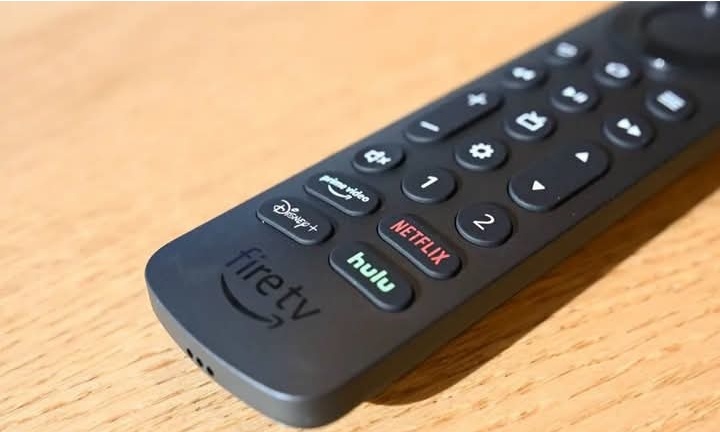
8 Secret Fire TV Remote Shortcuts Every IPTV User Should Know
If you stream IPTV on a Fire TV Stick, chances are you’re only using a fraction of what your remote can actually do. Amazon never explains these shortcuts in the box, but once you know them, switching between apps, adjusting settings, and controlling playback becomes noticeably faster. If you’re still deciding which app to run your subscription through, you can get more information on this in our roundup of the best IPTV apps for Firestick.
These shortcuts won’t fix buffering or improve stream quality on their own — that comes down to your connection and how your device is configured. But they will save you real time navigating your Fire TV, which matters once you’re working through a full lineup of channels.
Here are 8 worth learning.
1. Long-Press Home for Quick App Switching
Instead of backing out of your IPTV app to the home screen, press and hold the Home button. This opens a recent-apps carousel so you can jump straight to another app without losing your place.
2. Hold the Mic Button for Voice Search Anywhere
You don’t need to be on the home screen to search. Hold the microphone button from inside almost any app, including most IPTV apps, and ask Fire TV to find a channel or title directly.
3. Number Pad for Quick Time Jumps
If your remote has a number pad, tapping a number during playback jumps to that percentage of the video — handy for skipping intros or recaps without holding down fast-forward.
4. Rewind + Play to Restart Instantly
Pressing Rewind then Play in quick succession restarts the current title from the beginning — faster than scrubbing manually.
5. Hold Back to Clear App Cache
If an app (including your IPTV app) starts lagging, holding the Back button for a few seconds on some Fire TV models brings up a force-close option — a quick fix before doing a full reset.
6. Double-Tap Home for the App Grid
A quick double-tap on Home brings up your full app grid faster than navigating through menus — useful if you’ve got several streaming and IPTV apps installed.
7. Hold Select for Picture-in-Picture (Select Models)
On some Fire TV devices, holding Select while a video is playing shrinks it into picture-in-picture mode, so you can browse other apps without losing your stream.
8. Press Menu for Hidden Playback Controls
The three-line Menu button (where available) often reveals extra playback options — subtitles, audio tracks, or playback speed — that aren’t visible in the standard player bar. This is especially useful when watching content through apps like VLC alongside your IPTV setup learn more on VLC in our VLC hidden features guide.
Do These Shortcuts Improve Streaming Quality?
No — and it’s worth being clear about that. These shortcuts improve navigation speed and convenience, not buffering, resolution, or connection stability. If you’re having quality issues, that’s usually a network or provider problem, not a remote problem, and getting your device set up correctly from the start makes the biggest difference. You can walk through our Fire TV setup guide if you haven’t configured yours yet.
Before you make an IPTV purchase, it’s also worth reviewing our channel list and pricing to see what’s included and pick the plan that fits how you watch.
FAQ
Do these shortcuts work on all Fire TV remotes? Most work on the standard Fire TV remote and Fire TV Stick 4K remotes, but availability varies slightly by model and software version.
Will these shortcuts fix IPTV buffering? No. Buffering is usually caused by your internet connection or app configuration, not remote controls, so it’s worth checking your device setup before assuming it’s a remote issue.
Why doesn’t Amazon list these shortcuts anywhere? Amazon doesn’t publish an official shortcuts guide, so most users discover them by accident or word of mouth rather than through documentation.
Which IPTV apps work best with these shortcuts? Most standard IPTV apps for Firestick support these navigation shortcuts, so you shouldn’t need anything special to use them.
Do these shortcuts also work on Smart TVs? Some, like voice search and app switching, are Fire TV-specific. If you’re streaming on a Smart TV instead, check our best IPTV apps for Smart TVs guide for platform-specific tips.