
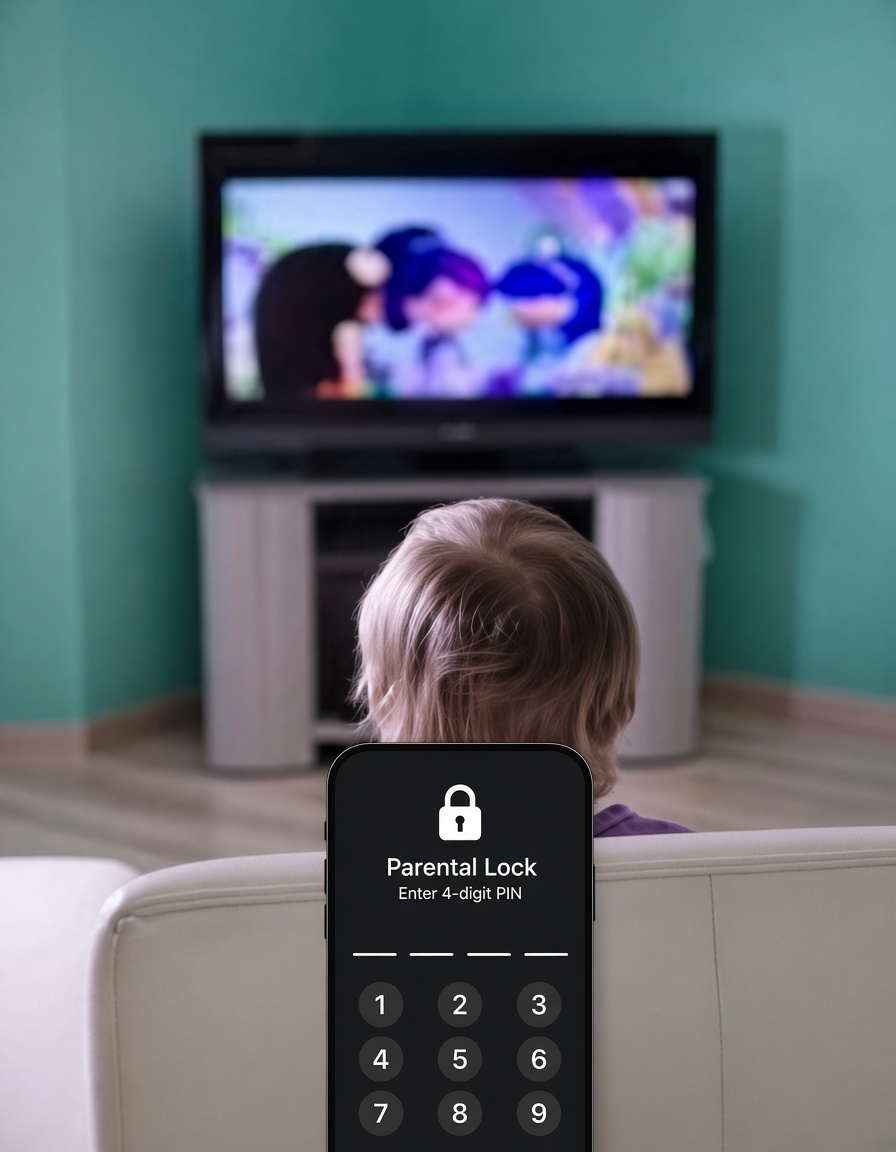
If your household uses IPTV, setting up proper IPTV parental controls is one of the most important things to do before handing the remote to your kids. A typical subscription includes thousands of channels — sports, movies, international content, and yes, adult categories too — all sitting in the same list. Without the right setup, an adult channel can be just a few clicks away from a cartoon network, and simply locking one channel usually isn’t enough to actually solve the problem.
Here’s how to set up IPTV parental controls properly, based on what actually works in practice — not just the basic PIN toggle most guides stop at.
Why Basic IPTV Parental Controls Aren’t Always Enough
Most people assume turning on a PIN is the whole job. In reality, many popular apps — including TiviMate — will still show the name of a locked channel or category in the list, even though opening it requires the PIN. That means a curious child can see “Adult” or “XXX” sitting right there in the menu, which defeats a lot of the purpose. If you’re deciding between apps in the first place, our comparison of TiviMate vs IPTV Smarters Pro covers how each handles this differently.
Real users setting up IPTV parental controls for the first time run into this exact issue constantly — the fix isn’t one setting, it’s three working together.
Step 1: Set a PIN in Your IPTV App
- Open your IPTV app and go to Settings.
- Look for Parental Control.
- Enable the PIN lock and choose a code that isn’t a factory default like 0000 or 1234 — this is the single most common weak point in household setups.
If you’re still getting your app connected for the first time, our guide on entering Xtream Codes and M3U URLs walks through initial setup before you get to this stage.
Step 2: Lock the Channel or Category, Then Hide It Too
This is the step most guides skip, and it’s the one that actually matters:
- Locate the adult channel or category in your channel list.
- Long-press (or select) the channel/group and choose Block/Lock.
- Separately, go into Manage Visibility (or your app’s equivalent hide function) and hide that same channel or group from the visible list entirely.
Locking without hiding still leaves the name visible and searchable. Hiding without locking means anyone can simply re-enable it. Doing both is what actually closes the gap.
Step 3: Rename Anything You Can’t Fully Hide
If your app doesn’t allow a group to be fully hidden, renaming the category removes the visual giveaway. Changing something like “24/7 Adult” to a neutral label, a single letter, or even a blank symbol means a curious child scrolling the list has nothing obvious to click on in the first place. You can see how categories and channel groups are typically organized by browsing our full channel list as a reference.
Step 4: Lock the Settings Menu Itself
This is the step that ties everything together, and skipping it is the most common mistake. If the settings or parental control menu isn’t itself locked behind the PIN, a child (or another family member) can simply go in and turn your restrictions back off. Most apps that support parental PINs also let you lock the settings/options menu using that same code — enable this alongside your channel restrictions, not as an afterthought.
Step 5: Build a Separate Channel Group for Kids
Rather than trying to manage restrictions across a full list of tens of thousands of channels, a simpler and more reliable approach to IPTV parental controls is creating a dedicated, limited group just for your kids:
- Create a new custom group containing only age-appropriate channels.
- Disable or lock every other group behind your PIN.
- If your kids have their own device, set this smaller group as the only one visible there.
This sidesteps the tedious process of locking or hiding channels one at a time, and it scales far better for households with large channel counts. If you’re also managing multiple people or devices on one plan, our guide on how many IPTV connections you actually need can help you figure out the right setup for a multi-user household.
Adding a Device-Level Layer to Your IPTV Parental Controls
App-level restrictions matter most, but pairing them with your streaming device’s own settings adds a real second layer:
- Fire TV/Firestick: Amazon’s built-in parental controls can restrict app access independently of your IPTV app’s own settings.
- Android devices: Google Family Link manages screen time and app access at the device level.
- Roku: has its own PIN and channel-locking system worth setting up alongside your app; our Roku IPTV setup guide covers the settings most people miss.
It’s Not Just About “Adult” Content
Worth keeping in mind: content concerns for kids don’t start and stop at explicitly adult-rated channels. The American Academy of Pediatrics has pointed to content type — not just screen time — as something worth paying attention to for young children. Similarly, UK government screen-time guidance for under-5s recommends age-appropriate, slow-paced content and suggests avoiding fast-paced or intense programming even when a young child seems to just be “in the room” rather than actively watching. Locking down adult categories solves the most urgent risk, but it’s worth applying the same thinking to general household viewing habits too.
Setting Reasonable Viewing Limits
Good IPTV parental controls cover more than just adult content — a few practical ways to manage how much is being watched:
- Use your device’s built-in screen time features (available on most Android TV and Fire TV devices).
- Set up separate profiles or custom groups per family member where possible.
- Keep shared devices in common areas rather than bedrooms, which naturally limits unsupervised access regardless of software settings.
Final Thoughts
Setting up IPTV parental controls properly takes a bit more than flipping one switch, but doing it right the first time — PIN, lock, hide, rename, and a locked settings menu — means you won’t have to revisit it constantly. It’s a five-minute job that saves a lot of hassle later.
One more thing worth knowing: at RushStreams, if you’d rather not deal with locking down adult channels at all, you can simply request that they be removed from your playlist entirely — along with any other categories or channels you don’t want included. Check our pricing plans to see what’s included, and our support team can customize your channel list on request.