
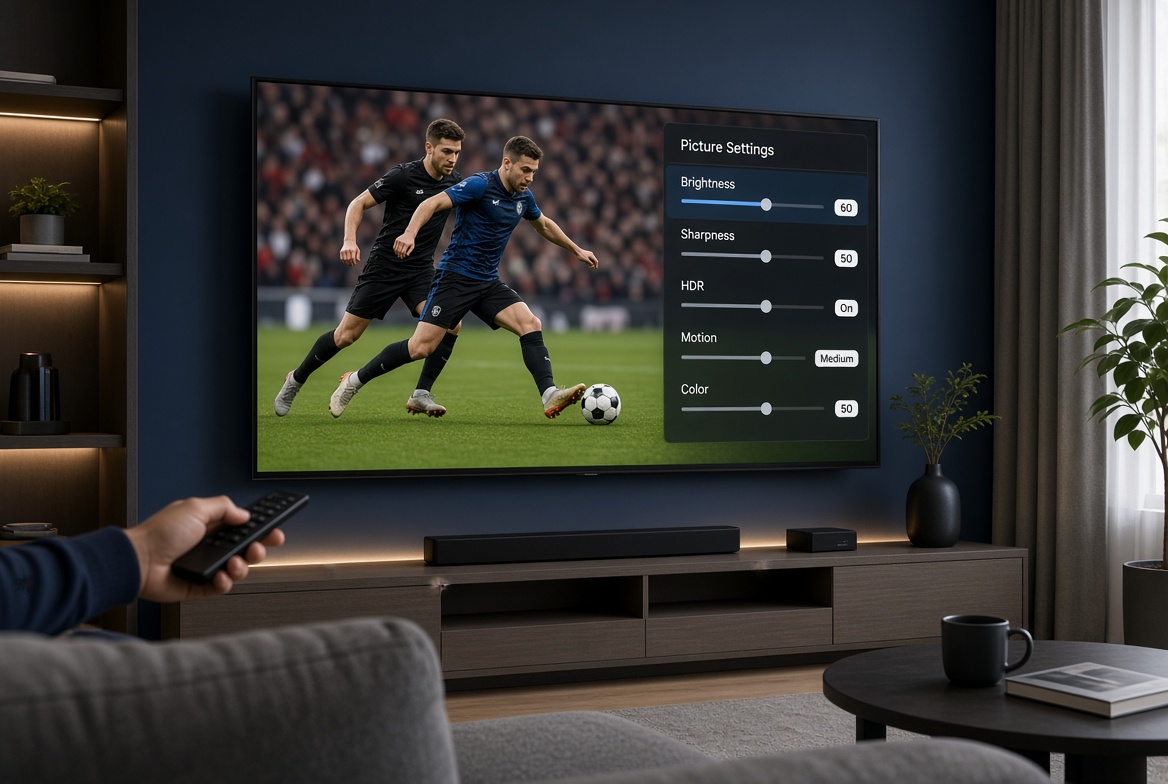
If your IPTV picture quality looks blurry, washed out, too dark, overly sharp, or simply not as good as other streaming services, your TV settings could be part of the problem. The good news is that you usually do not need professional calibration equipment to make a noticeable improvement.
A few changes to your picture mode, brightness, sharpness, motion processing, HDR, and streaming-device settings can make IPTV look cleaner and more natural. However, it is also important to understand that not every picture problem is caused by your TV. The stream quality, IPTV player, internet connection, streaming device, and HDMI connection can all affect what you see on screen.
Here are 10 TV settings for IPTV worth checking before you start troubleshooting elsewhere.
1. Start With the Right Picture Mode
Picture Mode is one of the easiest settings to overlook.
Most modern TVs offer modes such as Standard, Vivid, Dynamic, Movie, Cinema, Filmmaker Mode, and Sports. For IPTV, Movie, Cinema, Filmmaker, or Standard can provide a better starting point than Vivid or Dynamic.
Vivid and Dynamic modes often increase brightness, contrast, color saturation, and sharpening. That can make the picture look impressive at first, but it can also make live TV look unnatural.
RTINGS recommends starting with an appropriate picture mode before making individual adjustments because the mode can change several aspects of the picture at once.
Try starting with:
- Movie or Cinema
- Filmmaker Mode
- Standard
If you watch a lot of live sports, you can also experiment with Sports mode. Just check whether it introduces excessive sharpening or motion processing.
2. Adjust Brightness and Backlight
Brightness and backlight are not necessarily the same setting.
Depending on the television manufacturer, the controls may have different names and functions. Some TVs use a separate backlight or panel-brightness control, while the traditional Brightness control may affect black levels.
If IPTV looks too dark, increasing the TV’s overall light output may help. But simply turning every brightness-related control to maximum is not the answer.
Watch a familiar channel containing both bright and dark areas.
If you cannot see details in dark clothing, shadows, or darker scenes, the picture may be too dark. If blacks look gray and the entire image appears washed out, the black-level setting may need attention.
Your viewing environment also matters. A TV used in a bright room may need different settings from the same TV viewed at night.
RTINGS notes that TV terminology varies between manufacturers and recommends adjusting these controls according to the viewing environment rather than blindly copying settings from another television.
3. Reduce Excessive Sharpness
This is one of the most important settings to check when troubleshooting IPTV picture quality.
It sounds logical that increasing Sharpness would make IPTV look better. However, excessive sharpening does not create missing detail.
Instead, it can add artificial outlines around faces, text, players, grass, and other objects. This can be particularly noticeable when watching a compressed live TV stream.
Try reducing Sharpness and compare the picture.
Look closely at:
- Faces
- Grass during sports
- Stadium crowds
- Channel graphics
- Small text
- Fast-moving objects
If the picture becomes more natural after reducing Sharpness, you were probably dealing with excessive image processing rather than a lack of detail.
RTINGS similarly notes that excessive Sharpness can exaggerate contours and lines, and that the appropriate level varies between TV models.
4. Reduce Motion Smoothing if It Looks Artificial
Modern TVs use motion-processing technologies to make moving images appear smoother.
Depending on the manufacturer, you may see names such as:
- Motion Smoothing
- TruMotion
- Auto Motion Plus
- MotionFlow
- Intelligent Frame Creation
- Picture Clarity
Motion processing can be useful for some live sports, but aggressive processing can also produce an artificial “soap opera” appearance.
You may also notice strange artifacts around players, balls, or objects moving quickly across the screen.
Instead of automatically setting motion processing to maximum, start with a moderate setting or turn it off and compare the result.
For sports, experiment with the setting while watching actual live action rather than judging it from a static picture.
5. Check Noise Reduction
Noise reduction is designed to clean up unwanted visual noise, but too much processing can also remove useful detail.
This can be particularly noticeable with IPTV because some streams are already compressed.
Your TV may have settings such as:
- Digital Noise Reduction
- MPEG Noise Reduction
- Noise Reduction
- Digital Clean View
- Smooth Gradation
If the picture looks unusually soft, try reducing these settings.
You may notice the difference most clearly on:
- Faces
- Hair
- Grass
- Stadium crowds
- Fine text
- Detailed backgrounds
RTINGS has found on various TV models that noise-reduction processing can remove fine detail from higher-quality content, although the ideal setting depends on the source and television.
6. Don’t Overdo Color and Contrast
Color and contrast can dramatically change how IPTV looks.
If Color is set too high, faces can become unnaturally red or orange and sports jerseys may look excessively saturated.
If it is too low, the picture can look dull.
Contrast also needs to be balanced. Excessive contrast can cause bright areas to lose detail, while insufficient contrast can make the image appear flat.
Rather than copying an exact number from somebody else’s television, use a familiar IPTV channel and adjust gradually.
This is important because there is no universal set of numerical settings that works perfectly for every TV. Panel type, TV model, viewing environment, source quality, and picture mode all matter.
7. Check HDR Before Changing Everything Else
HDR can make compatible content look significantly better, but incorrect HDR handling can also make a picture appear too dark, washed out, or strangely colored.
If IPTV suddenly looks different when HDR content starts playing, check how your TV and external streaming device are handling HDR.
Depending on your device, you may see options such as:
- HDR Always On
- Match Dynamic Range
- Match Content
- Match Frame Rate
- Auto HDR
- HDR Mode
Where available, matching the content’s dynamic range can prevent SDR content from being unnecessarily converted to HDR.
Also remember that HDR and SDR can use different picture settings. RTINGS notes that TVs commonly treat HDR and SDR settings separately, so changing one does not necessarily change the other.
8. Check Your Streaming Device’s Resolution
A 4K television does not mean every IPTV channel is 4K.
Your Fire TV Stick, Google TV device, Apple TV, NVIDIA Shield, or another streaming device also has an output-resolution setting.
Check that your device is configured appropriately for your television.
For example, a 4K TV can receive a 4K signal from a compatible streaming device, while the original IPTV channel may still only be 1080p.
Increasing the output resolution cannot magically create additional source detail.
In simple terms:
4K TV + 4K output does not automatically equal a 4K IPTV stream.
If the original source is heavily compressed or low resolution, your TV cannot recreate information that was never present.
If your Fire TV or another device is also feeling slow during playback, our guides on how to fix a Fire TV Stick that is running slow and how to fix a Google TV Streamer that is running slow may help identify a device-side problem.
9. Check HDMI and Input Settings
If you use an external IPTV device, do not overlook the HDMI input.
Many televisions store picture settings separately for different inputs. This means your IPTV device connected through HDMI may not use exactly the same picture configuration as your TV’s built-in apps.
Depending on your TV, you may see settings such as:
- HDMI Enhanced Mode
- Input Signal Plus
- HDMI Deep Color
- Enhanced Format
- HDMI Signal Format
- Auto Low Latency Mode
The correct option depends on your specific TV and connected device.
If your external IPTV player looks noticeably different from your TV’s built-in streaming apps, compare the picture settings assigned to that HDMI input.
Also check that your HDMI cable and connected hardware support the resolution and HDR format you are trying to use.
If you are still getting started with IPTV on a television, our guide on how to set up IPTV on a Smart TV walks through the setup process.
10. Use a Sports-Friendly Setup for Live IPTV
Sports are one of the best ways to test IPTV picture quality.
Fast camera movements, grass, crowds, jerseys, scoreboards, and small details can expose picture-processing problems that are less obvious when watching a movie.
For live sports IPTV, pay particular attention to:
Motion: Too little processing can produce noticeable judder, while too much can create artifacts.
Sharpness: Excessive sharpening can make grass, crowds, and player outlines look noisy.
Noise reduction: Too much can make the entire picture look soft.
Brightness: You need enough light to see details without washing out the image.
Color: Excessive saturation can make grass and jerseys look unrealistic.
A moderate picture mode with sensible motion processing is often a better starting point than simply selecting the most aggressive Sports preset.
When TV Settings Won’t Fix Your IPTV Picture Quality
This is where many picture-quality guides stop too early.
If you have adjusted your TV settings and the picture still looks poor, the problem may have nothing to do with the television.
Your IPTV picture quality depends on the entire delivery chain:
Source → IPTV service → Internet connection → IPTV player → Streaming device → HDMI → TV processing → TV panel
A problem anywhere along that chain can affect the final image.
The stream itself may be low quality
A channel labelled HD can still look poor if the source is heavily compressed.
You may notice:
- Blocky areas during fast movement
- Pixelation
- Blurry faces
- Poor fine detail
- Artifacts around players
- Quality that changes during busy scenes
Changing Sharpness will not fix heavily compressed video.
Your internet connection may be unstable
A connection can be fast enough for normal browsing but still have instability that affects live streaming.
If the picture repeatedly becomes blurry and then recovers, look for:
- Wi-Fi interference
- Network congestion
- Connection instability
- Buffering
- Weak Wi-Fi signal
Testing the same stream over a more stable connection can help isolate the problem.
The IPTV player can make a difference
Different IPTV applications can handle streams differently.
If a channel looks poor in one compatible player but noticeably better in another, the problem may involve playback, decoding, buffering, or the way the application handles that particular stream.
If you regularly use multiple playlists or services, our guide on how to use multiple IPTV playlists can also help when troubleshooting different sources and players.
Your streaming device may be the bottleneck
An older or underpowered streaming device can struggle with certain video formats.
If the same IPTV stream looks noticeably better on another compatible device, compare:
- Resolution output
- HDR settings
- Frame-rate matching
- Network connection
- App version
- Device performance
This can help determine whether the television is actually responsible.
What TV Settings Should You Change First?
If you do not want to spend an hour changing every setting, start with these five:
- Picture Mode — try Movie, Cinema, Filmmaker, or Standard.
- Sharpness — reduce excessive artificial sharpening.
- Noise Reduction — reduce it if the picture looks soft.
- Motion Processing — adjust it according to the content you watch.
- Brightness/Backlight — balance visibility with black-level detail.
Then check HDR and your streaming device’s output settings.
Most importantly, change one setting at a time. If you change everything simultaneously, you will not know which adjustment actually improved the picture.
Final Thoughts on IPTV Picture Quality
Getting better IPTV picture quality is not always about buying a new television or copying a set of calibration numbers from another TV.
Start with the basics: choose an appropriate picture mode, avoid excessive sharpening, control motion processing, adjust brightness and color sensibly, and check HDR and HDMI settings on external streaming devices.
If the picture is still blurry or pixelated after that, look beyond the TV. The source quality, stream compression, IPTV player, internet connection, or streaming device may be responsible.
And remember: a better TV can display a better-quality source, but it cannot turn a heavily compressed stream into genuine HD or 4K.
If you are comparing available channels, you can also check the RushStreams channel list. For installation help, see the IPTV setup guide. And if you are ready to compare plans, visit the RushStreams pricing page.